Start a build, or save it as an idea
Create a build with its character, series, con and budget, or keep it as an idea for later; start one from the Anime Atlas; link it to a con event; edit or delete it.
- ~4 min
- New to it
- Part 1 of 8
A build is one costume, from first idea to the con. This part sets one up; the rest of the series fills it in.
Before you start
- A Waypoint account. My Builds is free on every plan.
Create a build
Open My Builds
In the Cosplay Realm's rail, choose My Builds (under Plan & track), then press + New build.Name it
Build title — at least two characters, such as Samurai Link.Say who and what
Character and Series. As you type, names other members already use are suggested; picking one puts your build on the same character and series pages later.Add the con and a budget (optional)
Target convention (optional), Target date (optional) and Rough budget, $ (optional), as a number of dollars. You can fill these in later.Create it
Press Create build. The build opens in Planning.
Check it worked
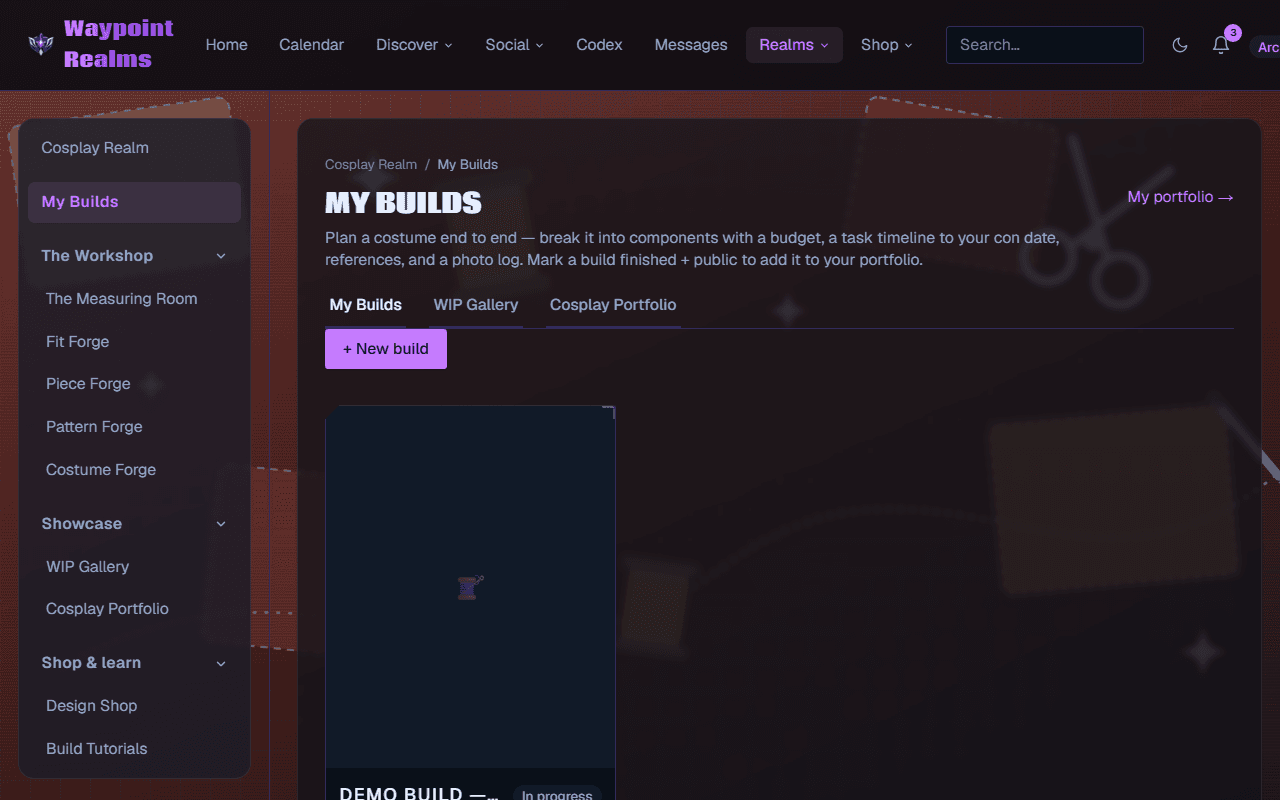
Or keep it as an idea
Not ready to plan it? Fill in what you know and press Save as an idea instead. Ideas sit in their own list (ideas) and stay out of your reminders and your calendar. You can still add references and pieces to one.
Start planning when you're ready
Press Start planning on the idea, in the list or on its page. It becomes a build in Planning with everything you saved.
Start from the Anime Atlas
On a character's page in the Anime Atlas, press Cosplay … → (with the character's name). The new-build form opens with the title, character and series filled in.
Link it to a con on Waypoint Realms
Open Edit details
On the build, press Edit details.Find the event
Under Link to a con on Waypoint Realms, type in Search Circle events by name or place and press Link beside it.
Check it worked
Change or delete it
Edit details changes the Title, Character, Series, Con, Con date and Rough budget, $ (the con and date are locked while the build is linked to an event). Press Save details. Delete build removes it with its pieces, tasks, references and photos; designs and costumes you made for it stay in your library.
No archive
If something's off
- “Write the budget as a number of dollars, like 250.”
- Type only the number — no $ sign or words.
- I can't find my con under Link to a con
- Only events you can see are listed: a private Circle's events are for its members. Type the con's name as plain text under Con instead.
- My idea isn't on my calendar
- Ideas never are. Press Start planning to turn it into a build.
Still stuck? Browse all help or contact us. To report someone or something, use the report action on the relevant profile, post, or session — it sends us the context automatically.