Two-factor authentication (2FA)
Add a second step to sign-in with a passkey or an authenticator app — how to turn it on, what to expect at login, and how to turn it off.
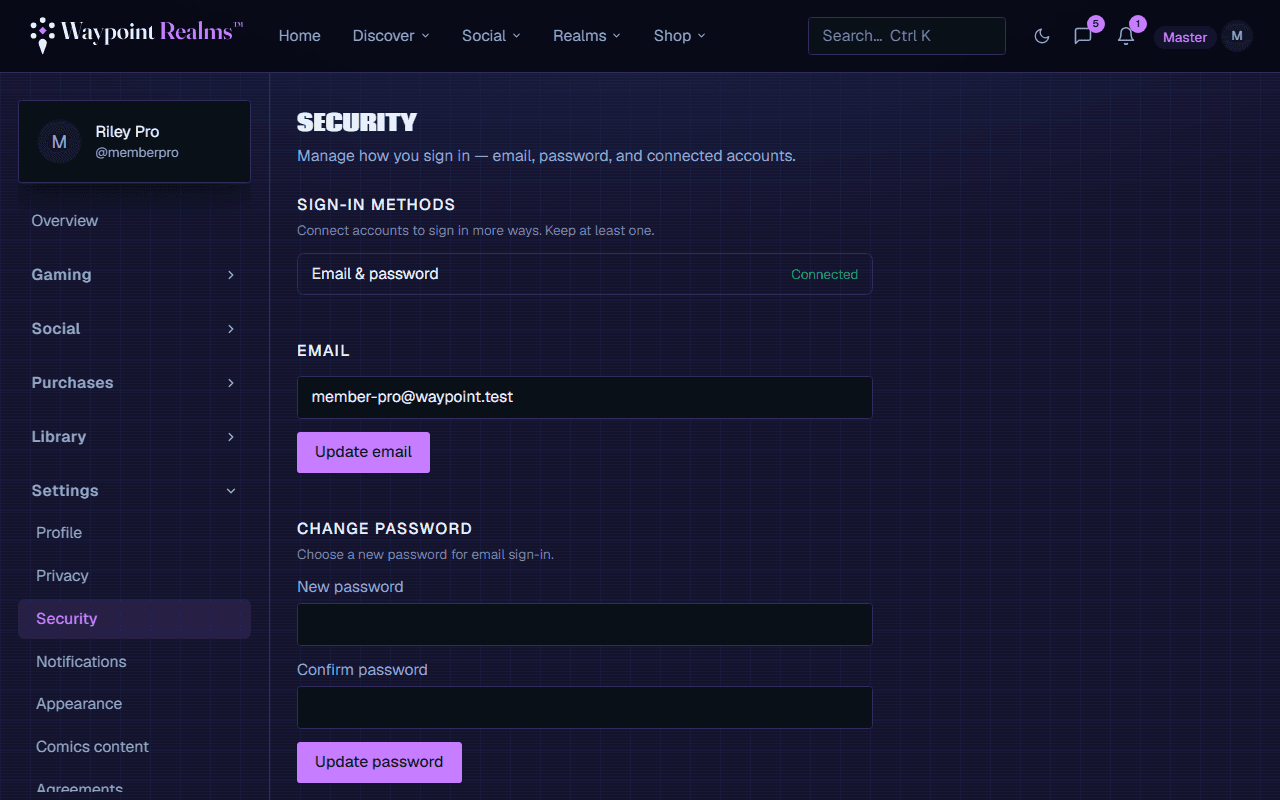
Two-factor authentication (2FA) adds a second step when you sign in: after your password (or social login), you confirm it's really you. Even if someone learns your password, they can't get in without your device. Manage it under Profile → Security.
Two ways to confirm
- A passkey — unlock with Face ID, Touch ID, a fingerprint, or Windows Hello. Nothing to type, and nothing to copy from another device. A passkey is tied to the device you created it on, so add one on each device you use.
- An authenticator app — a 6-digit code that changes every 30 seconds, from e.g. Google Authenticator, Microsoft Authenticator, Authy, or a password manager like 1Password or Bitwarden. Waypoint Realms uses standard TOTP, so any of them work.
You can use both, and we recommend it: passkeys are the quick everyday route, and an authenticator app is what gets you back in if you lose a device.
Add a passkey
- Go to Profile → Security and, under Passkeys, choose Add a passkey.
- Your device asks you to confirm with Face ID, a fingerprint, or your device PIN. That's the whole setup.
- The passkey appears in the list, named after the device and browser you added it from, so you can tell them apart later.
One passkey per device
Turn on an authenticator app
- Go to Profile → Security and, under Authenticator app, choose Set up authenticator app.
- Your authenticator app: add a new account by scanning the QR codeshown, or by typing the setup key underneath it if you can't scan.
- The app now shows a 6-digit code that changes every 30 seconds. Type the current code into Verify & enable.
- That's it — 2FA is on. From now on you'll confirm a second step each time you sign in.
Enter the current code
Signing in with 2FA on
Sign in with your email and password (or a social login) as usual. If you have a passkey on that device, Waypoint Realms offers it first — one tap and you're in. Otherwise it asks for your 6-digit code. Either way you can pick the other method with the link underneath. You can't reach the rest of the app until you complete this step — it applies on every device and browser, every time you sign in.
Turn off 2FA
On Profile → Security, remove each passkey with Remove, and the authenticator app with Turn off. You'll need to be signed in (which means you've already passed 2FA), so keep it on unless you have a reason to remove it.
Keep a way back in
Good to know
- 2FA protects sign-in. It doesn't change how your profile privacy or messaging work — see Privacy controls for those.
- Only you can enable or remove 2FA on your account, and only from a signed-in session.
- You can attach one authenticator app and as many passkeys as you have devices. Backup codes are a planned addition.
- Passkeys need a reasonably current browser and a secure connection. If your browser can't use them, the Passkeys section says so and you can use codes instead.
Still stuck? Browse all help or contact us. To report someone or something, use the report action on the relevant profile, post, or session — it sends us the context automatically.