Playing with the AI Game Master
A walkthrough of a whole AI-run table — create the campaign, light the session, take a turn, roll, and tune the GM's voice, length, dice, memory and recaps.
The AI Game Master lets a group start a campaign and play right away — no one has to prep or run the table. It narrates scenes, voices NPCs, adjudicates the rules, rolls dice, keeps the battle map in sync, and remembers your story.
This article walks one table from nothing to a scene in play. Every screenshot below is the same campaign, so you can follow it end to end.
1. Create the campaign
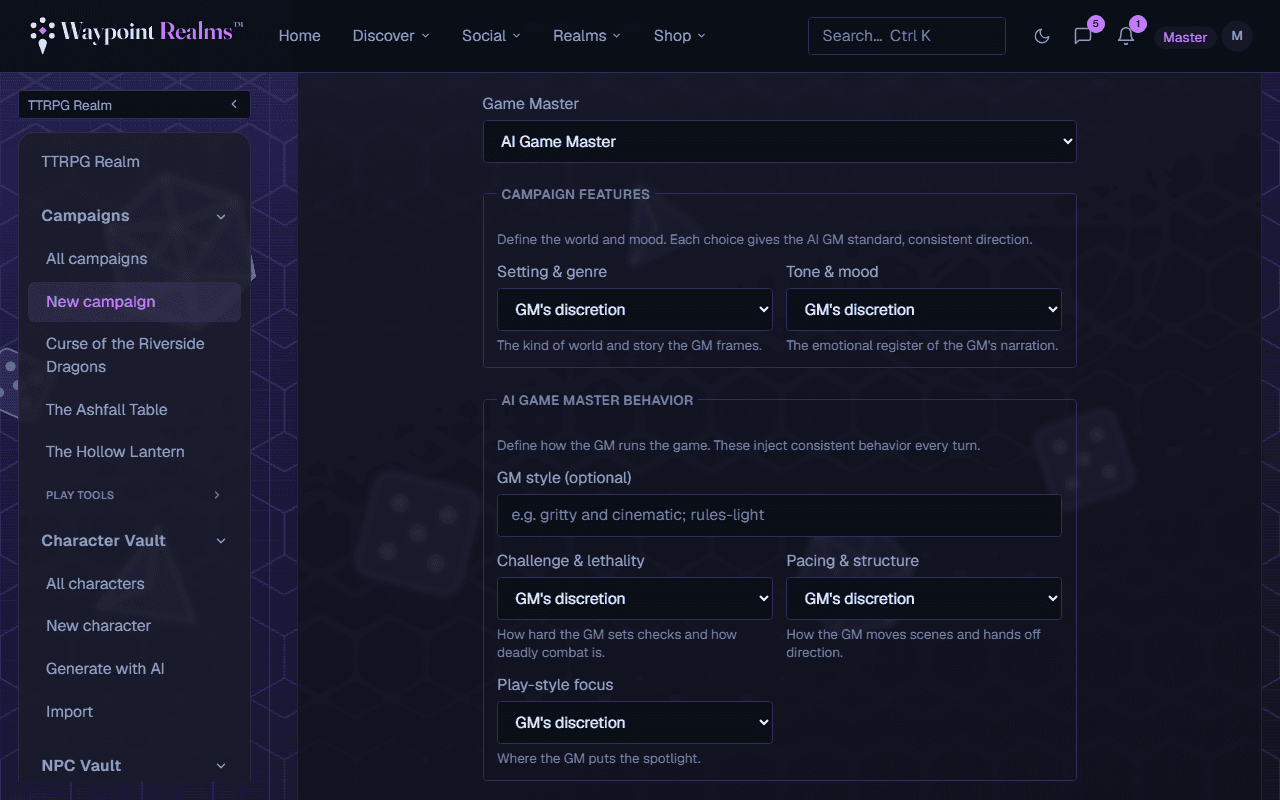
Start at Campaigns → New campaign. Everything but the name is optional, but one field changes the whole page: set Game Master to AI Game Master and the form opens up.
Pick your ruleset
System is how the GM knows which rules to adjudicate and which character sheet to use. Pick the real one if it's listed; a table with no formal rules can choose custom.Set the direction (optional)
Campaign features covers the world — setting & genre and tone & mood. AI Game Master behavior covers how it runs — a free-text GM style (“gritty and cinematic; rules-light”), plus challenge & lethality, pacing & structure, and play-style focus. Each choice adds a consistent instruction to every turn; every one you leave at GM's discretion is left to the GM.Give it a starting situation
Extra context & starting direction is the highest-value box on the form. It's your world, your house rules, and where the story opens, and the GM treats it as canon. “A grim frontier town on the edge of a haunted forest; the party are reluctant mercenaries hired to investigate missing villagers; open at the town gate at dusk” is enough to play from.
None of this is locked in
2. Meet your Game Master
Open the campaign and you're at the table. When an AI runs the game it takes the head of the table and the party sits clockwise from it. Its chair carries the name you gave it, the style it's playing, and the table's shared credit balance.
Invite the rest of the table from the roster, and have everyone link a character. The GM addresses characters by name, and a linked character is what lets the dice tray pre-fill the right modifiers.
3. Light the table
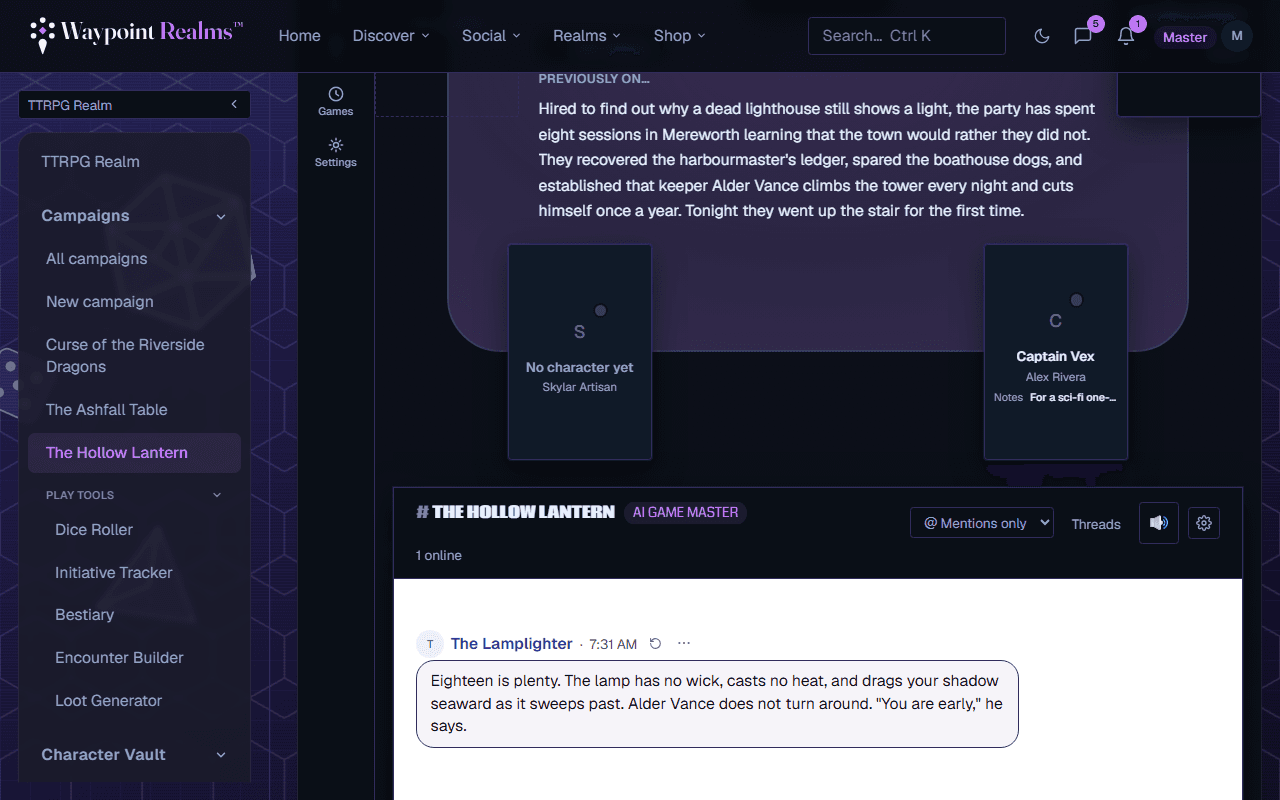
A campaign only runs while a session is live. That gate is deliberate: it stops someone wandering in midweek and driving the story alone. Start one from the session bar — who's allowed to is a setting (admins only, by default).
If the play controls look dead
4. Take a turn
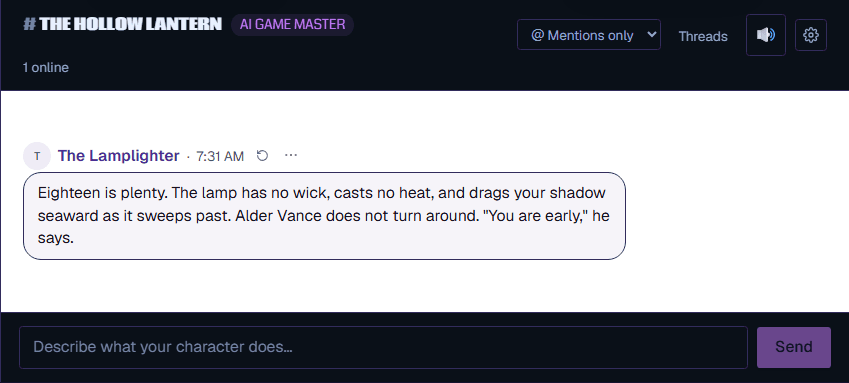
Play happens in table talk. Type what your character does, in plain language — “we take the stair up to the lamp room, slowly.” The GM only ever controls the world and its NPCs, never your character.
Describe what you do
One character, one action, in your own words. You don't need to name a skill or quote a rule — the GM works out what to call for.Let it resolve
The GM narrates the outcome, looks up creature stats, and updates the map. Longer scenes arrive as they're written rather than all at once.Roll when asked
On ask dice mode the GM tells you what to roll and waits. Use the dice tray in your dock — it pre-fills the die and your character's modifier, the server rolls it, and the result posts as its own card. On auto the GM rolls for you and shows its work.
Why a roll looks different from a message
5. What the GM remembers
Two kinds of memory, and both are yours to inspect:
- A running recap — the story so far, re-summarized every few turns (the recap cadence, which you can turn off). This is what keeps session 12 consistent with session 2, and it's what the table sees on the centre stage as previously on…
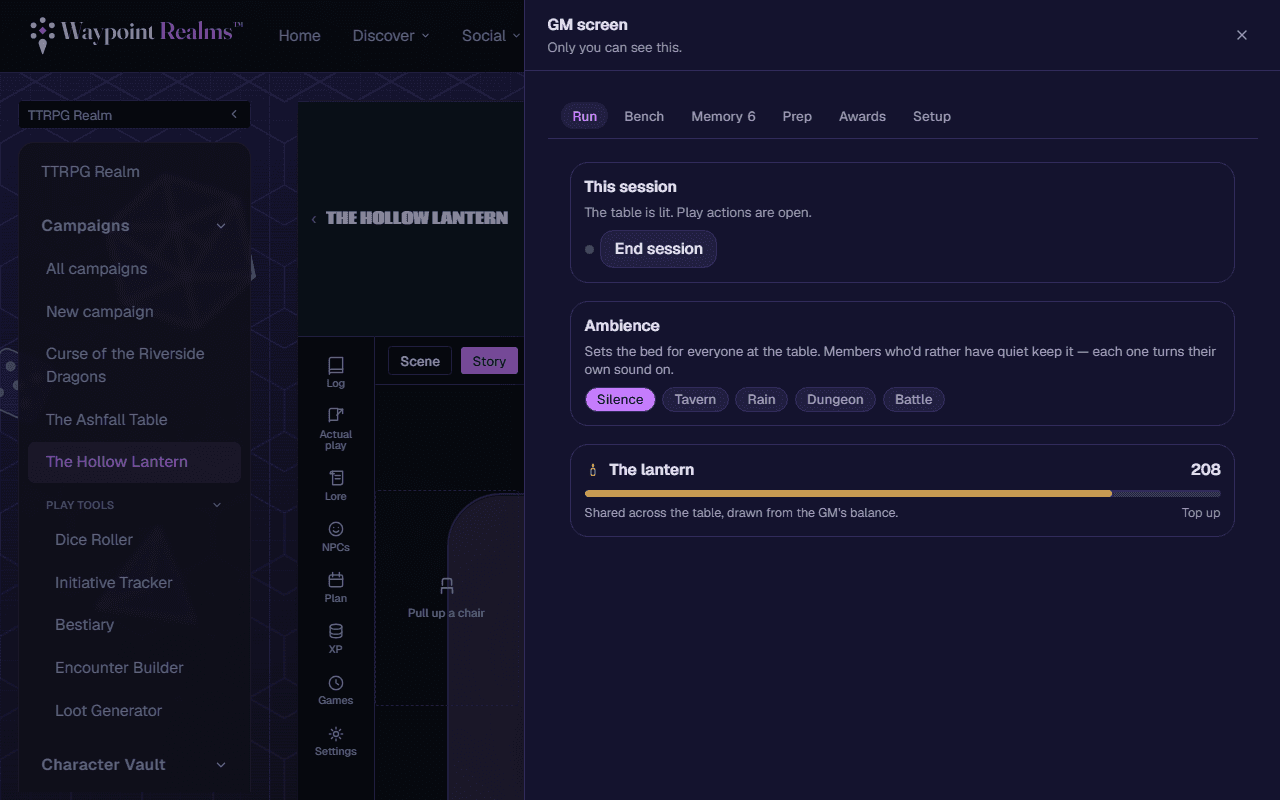
- Canon — durable facts: NPCs, locations, open threads, bonds, and decisions the party made. The GM screen's Memory tab lists them, and a GM can edit, re-prioritize, or retire any entry. It isn't a black box, and a retired fact stops being fed to the GM without being deleted from your history.
Tuning the GM
A campaign admin can reshape the GM at any point in Campaign settings:
- GM style & campaign context — the persona and tone, plus authoritative background the GM treats as canon.
- Reply length — terse, standard, or cinematic.
- Dice mode — auto (the GM rolls for players) or ask (it tells you what to roll and waits).
- Recap cadence — summarize the story into the GM's memory every few turns, or never.
- XP — let the GM award XP automatically, propose awards for your approval, or leave it entirely manual.
- Voice — pick a narration voice; the GM can speak each reply automatically, or only when someone asks it to. There's also a live voice room for the table.
AI credits
Each AI‑GM turn spends AI credits from the GM's balance, shared by the whole table. Your tier includes a monthly allowance — Apprentice 10, Artisan 100, Master 250 (Master also unlocks the more capable Sonnet model) — and the GM can buy top‑up packs. The GM's chair shows what's left; when it runs out, play pauses until the GM tops up at Buy credits.
Two credit pools
Mature content & safety
- Mature (18+) tables — a GM can mark an AI campaign mature to allow dark themes, graphic violence, and strong language. See settings.
- Always off‑limits — sexually explicit content, and anything sexual involving minors, is blocked on every table, with a safety screen on the GM's replies.
- Minors override the rating — if a minor is at the table, content is kept strictly PG regardless of the mature toggle.
- Report a bad turn — open the ⋯ menu on any Game Master post and choose Report. It files under “The AI Game Master said something wrong” and goes to our moderators as an issue with the generation — never as a complaint about your GM, whose account the post is written under.
- AI‑generated & imperfect — treat the GM as a creative storyteller that can get a rule or a detail wrong. A human can take the reins at any time.
Still stuck? Browse all help or contact us. To report someone or something, use the report action on the relevant profile, post, or session — it sends us the context automatically.