Tune your campaign's settings and keep the table safe
Every campaign setting in order — rules, play, access, Circle, content rating, the AI Game Master's behaviour, admins — and switching between a human and an AI GM.
- ~10 min
- Comfortable
- Part 10 of 10
Settings decide how the campaign runs. Only admins see them — the GM, any Co-GMs, and players you've made admins. Most changes take effect straight away.
Before you start
- To be an admin of the campaign.
Open settings
At the table, open Table settings and press Settings, or open GM screen → Setup. On the classic page, press Campaign settings.
Go through them in order
Rules
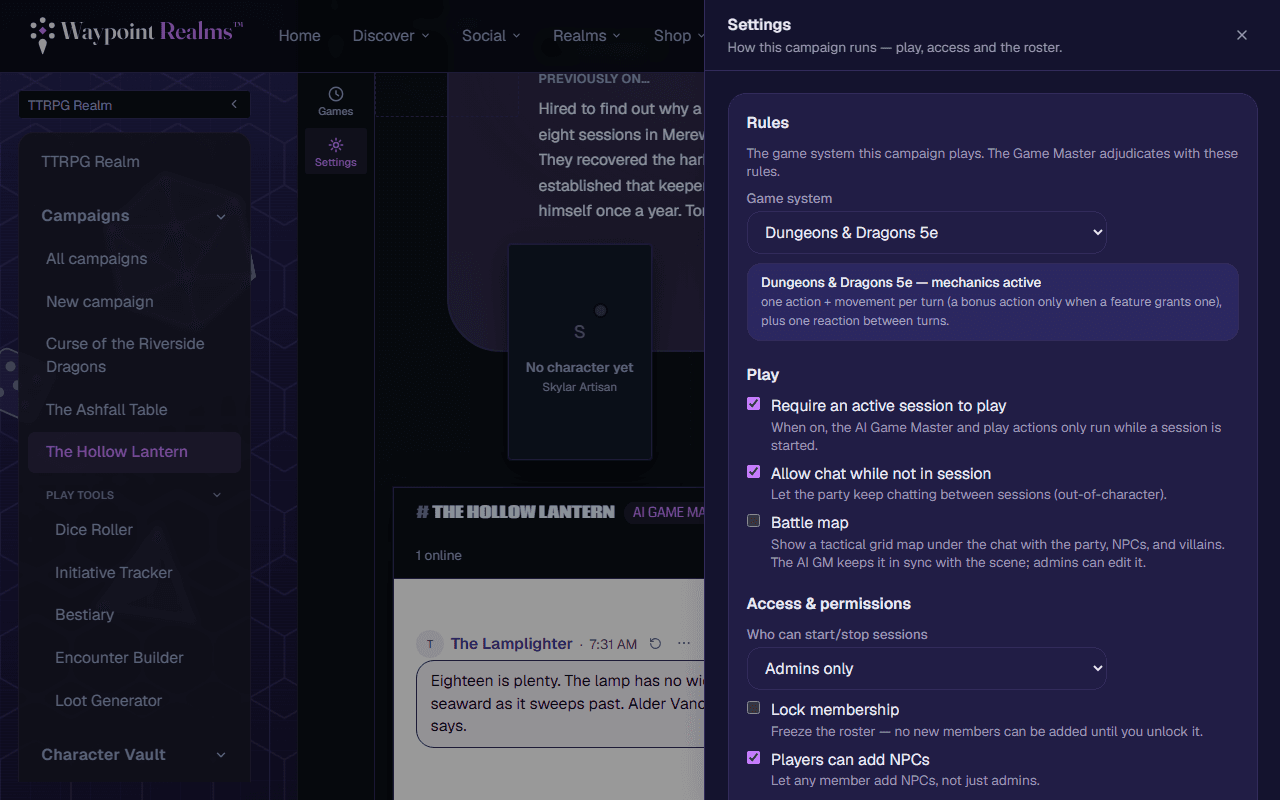
Game system sets the rules the GM adjudicates with. Infer from the campaign's name guesses; pick the system to be certain, or Custom / house rules to freeform. The note under it says which rules are active.Play
Require an active session to play (on by default) keeps the AI GM and play actions to running sessions. Allow chat while not in session (on by default) lets the party talk between sessions. Battle map (off by default) turns on the campaign map (part 7).Access & permissions
Who can start/stop sessions: Admins only or Any member. Lock membership freezes the roster. Players can add NPCs and Players can add notes open those to every member.Circle
Run the campaign under one of your Circles so it shows on the Circle's page. A private campaign stays hidden there.Content
Tick Mature (18+) content to allow dark themes, graphic violence and strong language (never explicit sexual content). Unticking returns the campaign to a teen rating.Admins
Tick Admin beside a player to let them change settings and start and stop sessions. Co-GMs are always admins.
AI-run campaigns: the Game Master's behaviour
World and direction
Campaign features and AI Game Master hold the setting, tone, challenge, pacing and focus presets from creation, and Extra context & starting direction (press Save context).How it plays
Turn tracker (a human runs initiative, or the AI does), Dice rolls (GM rolls for players or Ask players to roll), Reply length (Terse, Standard, Cinematic), AI model (Standard at 1 credit a turn, Premium at 4), Auto-recap (every turn by default) and XP awards (part 8).Its identity
Name (blank means Game Master), Voice with ▶ Preview, and an Avatar: Upload one (PNG, JPEG, WebP or GIF, up to 2 MB) or Generate with AI (5 AI credits, from whoever presses it).
Check it worked
Switch between a human and an AI GM
The GM or a Co-GM can press Switch to AI Game Master or Take over as human GM — under Who runs the game in Table settings, or in the classic page's toolbar. The campaign, its records and its party carry on either way.
Under-18s and Mature tables
Set once
If something's off
- I can't see Settings
- Settings are for admins. Ask the GM to tick Admin beside your name.
- The Admin box is greyed out for someone
- They're a Co-GM, and Co-GMs are always admins.
- The AI section is missing
- It only appears on AI-run campaigns. Switch to the AI Game Master first.
Still stuck? Browse all help or contact us. To report someone or something, use the report action on the relevant profile, post, or session — it sends us the context automatically.