Run a session as the GM
Start the session, set the scene and the mood, seat NPCs, roll initiative, hand out lore, and end the session — from the GM screen and your dock.
- ~10 min
- Comfortable
- Part 4 of 10
A session is the stretch of time the table is lit: play actions, chat and the AI Game Master work while it runs. This part is the GM's side of one evening, start to finish. It uses the table layout (part 3).
Before you start
- To be the GM or an admin of the campaign. (Settings can let any member start and stop sessions.)
- NPCs you want on hand, added under the NPCs tab (part 6).
Open the evening
Start the session
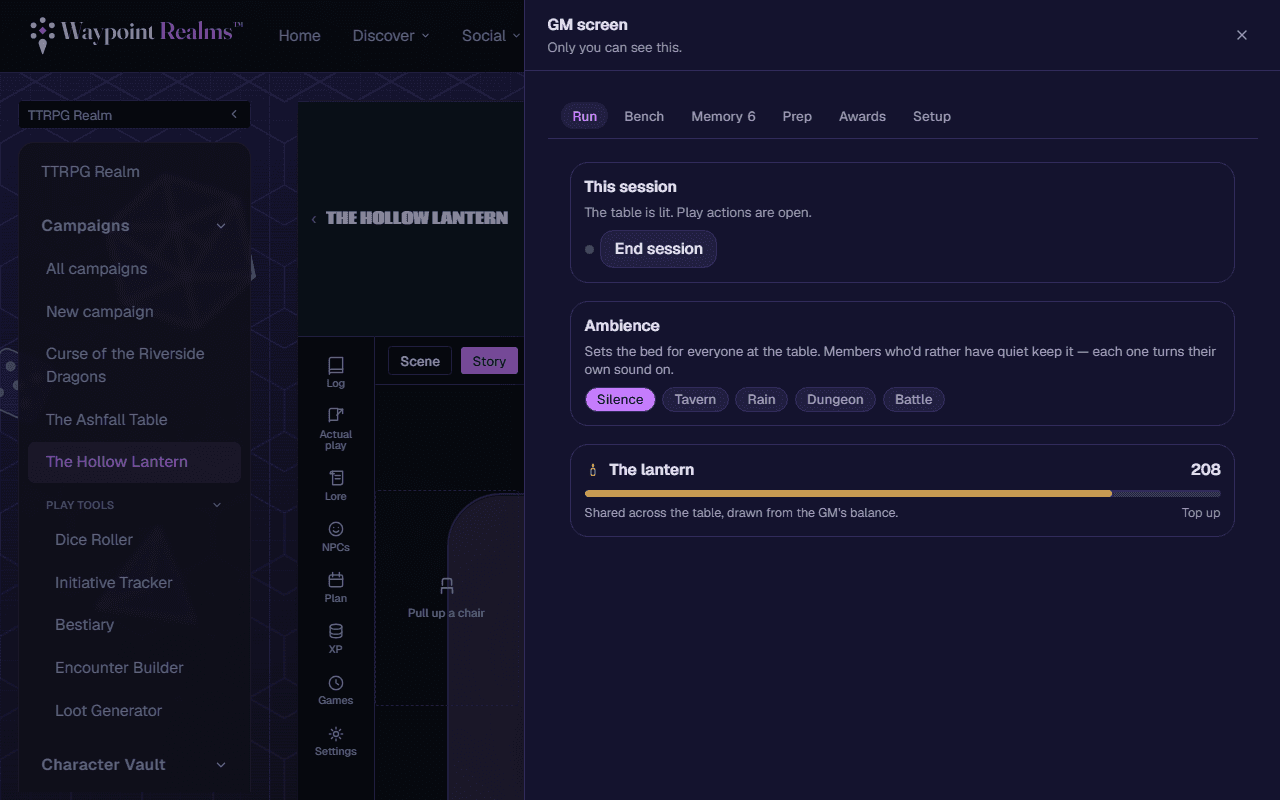
Press Start session: on the placard in the middle of the table, in GM screen → Run, or in Table settings under This session. The session chip in the top bar starts its clock.Set the mood
In GM screen → Run, choose an Ambience: Silence, Tavern, Rain, Dungeon or Battle. It plays for everyone who has turned their own sound on with the ambience chip.Set the scene
Switch the stage to Scene and press Set the scene. Fill in Where are we? (The flooded antechamber) and Mood (comma separated), then press Set the scene again to save it. Change scene moves on.Remind them what happened
Switch the stage to Story: Previously shows the latest entry from the campaign's Log, and the sessions behind you.
Run a fight
Bring the NPCs to the table
In GM screen → Bench, press Seat at table on each NPC in the scene. Send to bench takes them off again.Roll initiative
Press Initiative in your dock. It rolls a d20 for every linked character and every seated NPC and puts the turn order above the table.Adjust the order
Press Edit on the turn order to add an extra combatant — a name (Wandering goblin) and an initiative, then Add — and Done when you're finished.Step through turns
Press Next turn. The player whose turn it is sees ▸ It's your turn in their dock.End the fight
Press End fight in your dock (or End on the turn order).
Hand something out
Press Handout in your dock to open Lore, and tick Reveal on an entry — a letter, a map, an NPC. It lands on the table for everyone as … revealed, filed in Lore. Part 6 covers writing Lore.
Close the evening
End the session
Press End session where you started it.Write it down
Add what happened to the Log (Journal tab), or draft a recap with AI — part 6.
Check it worked
Running an AI table?
If something's off
- Initiative is greyed out — “Seat someone first.”
- Nobody can be rolled: link characters to the campaign, or seat NPCs from the Bench.
- “Only campaign admins can control sessions.”
- Ask the GM to make you an admin, or to set Who can start/stop sessions to Any member in settings.
- “A session is already running.”
- Someone started it already: the session chip shows its clock.
- The players can't hear the ambience
- Each member turns sound on for themselves with the ambience chip in the top bar.
Still stuck? Browse all help or contact us. To report someone or something, use the report action on the relevant profile, post, or session — it sends us the context automatically.