Import a character from a photo or text
Upload a photo of your paper sheet, or paste its text, and AI reads it into a character in your vault for you to check and finish.
- ~5 min
- New to it
- Part 3 of 5
- Up to 1 AI credit
Already have a character on paper, in a PDF or in another app? Import reads a photo of the sheet, or its text, into a new character in your vault, for one AI credit. You then check what it read and fill any gaps.
Before you start
- A free character slot, as in part 1.
- 1 AI credit; see AI credits.
- The sheet as a photo or screenshot (JPEG, PNG, WebP or GIF, up to 5 MB), or its text (up to 20,000 characters). PDFs can't be uploaded: screenshot the page, or copy its text.
Sample file: a sample D&D 5e sheet to practise with (PNG)Made by Waypoint Realms for this tutorial; free to use.
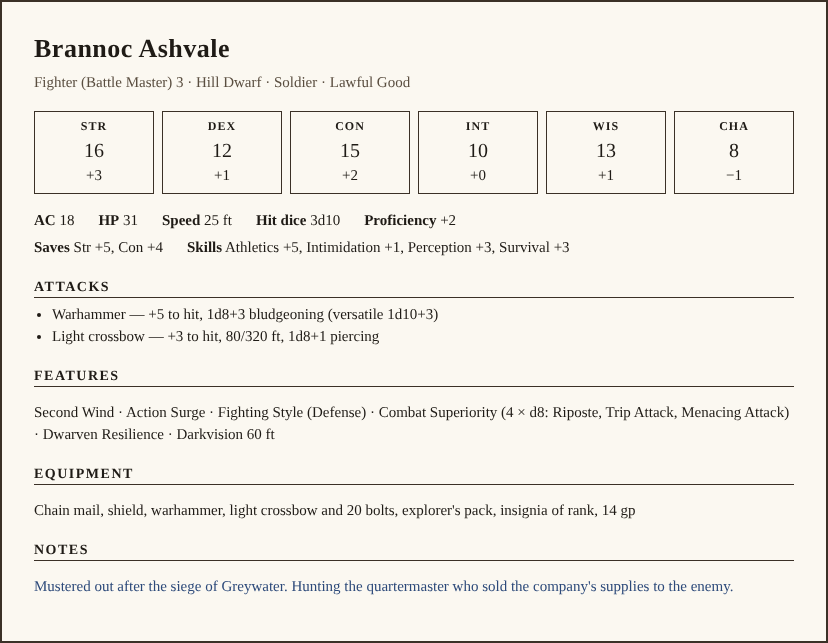
Sample file: the same sheet as text to paste (TXT)Made by Waypoint Realms for this tutorial; free to use.
Import the sheet
Open Import
In the Character Vault, press Import at the top, or choose Import from a sheet from the New character ▾ menu.Choose the system
Pick the sheet's game in System. This decides which sheet the import fills in, so choose the one the character is actually for.Add the basics (optional)
Character name (optional) is read from the sheet if you leave it blank. Game / setting (optional) — Curse of Strahd, say — helps the reader make sense of setting-specific entries.Give it the sheet
Under Sheet photo (optional), choose your image. Or paste the text into …or paste the sheet text. You can give both, and the reader uses both.Import
Press Import character. It reads Importing… while the sheet is being read.Check what it read
You land on the new character's sheet. Compare it with your original, then press Edit to correct or complete anything. Whatever the import couldn't fit into a field — an unusual feature, a house rule — is kept in the sheet's Notes, not thrown away.
Check it worked
A clearer photo reads better
If something's off
- “Upload a photo of your sheet or paste its text.”
- Nothing was given to read. Choose an image or paste the text, then import again.
- “That image is too large (max 5MB)…”
- Use a smaller photo (most phones can share a reduced size), crop it, or paste the text instead.
- “Couldn't read that sheet. Try pasting the text instead.”
- The reader couldn't make sense of the image. Paste the text; if the sheet is only on paper, type the main lines.
- “You're out of AI credits…” or your slots are full
- Import needs a credit and a free slot, and checks the slot first. See AI credits and part 1's troubleshooting.
Still stuck? Browse all help or contact us. To report someone or something, use the report action on the relevant profile, post, or session — it sends us the context automatically.