
Messaging: DMs, groups & Circle rooms
Find your conversations by Circle, sort them into folders, catch up with Unread and Mentions, answer message requests, roll dice and run polls, and choose how Messages looks and sounds.
On this page
Messages is where you talk on Waypoint Realms: one-to-one direct messages, group chats you start, and the rooms that come with your Circles, campaigns and Session Chats.
Finding a conversation
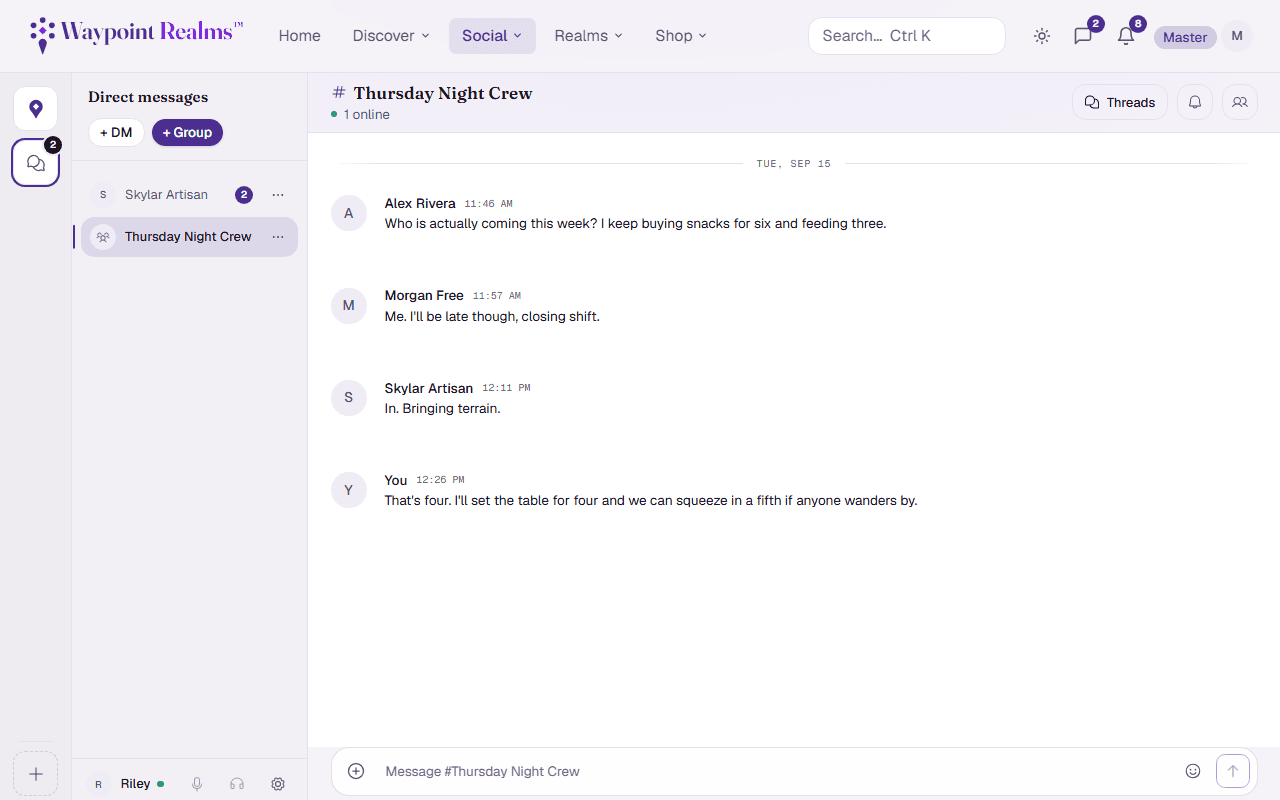
On a computer, Messages is laid out in columns, left to right:
- The Circle column — a tile for Home (your campaign and Session Chats), one for Direct messages (your DMs and groups), then one for each Circle you belong to, most recently active first. A tile carries its unread count — muted rooms don't add to it, and the Direct messages tile counts each waiting request. The + finds or starts a Circle, and the gear at the bottom opens message settings. You can move between tiles with the arrow keys, and the Circle you had open is remembered on this device.
- The rooms column — the tile you picked, in folders you can fold away (a folded one shows its unread count, and stays folded on this device). A Circle lists its rooms under the headings its Circle Lead chose, with voice rooms on their own; Home has Campaigns and Session chats; Direct messages has your DMs, your Groups and any Requests. The caret by the title starts a new message or group, or searches your messages.
- The room — the conversation you opened, with its title and topic above it, the people in it on the right, and the message box below.
At the bottom of the rooms column you'll find your name and the microphone and headphone controls for a voice call you're in.
Unread, Mentions, Threads and Requests
The four lines at the top of the rooms column work across every Circle at once:
- Unread lists every conversation with something new, wherever it is, so you can work down it. Choose it again to go back to the Circle you were in.
- Mentions does the same for conversations where someone @mentioned you.
- Threads opens every thread you're in, from every room, beside the conversation.
- Requests takes you to messages from people outside your Circles and friends (see below).
With a keyboard, Alt+↓ and Alt+↑ jump to the next and previous conversation with something unread.
Starred, folders and mute
Right-click a conversation, or use its ⋯, to Star it (it also appears in a Starred folder at the top), Mute it (it stops notifying you and leaves every count), Mark as read, or Move to folder…. Make your own folders with New folder at the bottom of a Circle or of Direct messages — say Friends and Trades — and rename or delete one from its own ⋯. Your folders and stars follow you to every device; deleting a folder puts its conversations back where they were.
On a computer, drag your own folders to put them in the order you like, and drag the conversations inside one of them the same way. Anywhere — on a phone, or from the keyboard — Move up and Move down in the folder's ⋯ and in a conversation's ⋯ do the same. Starred, your Circle's own rooms and your other conversations keep their usual order.
Your atlas of conversations
Open Messages without choosing a room and you get a map of every conversation you're in, each one a waypoint. The more unread a conversation has, and the more recently it was active, the larger its waypoint, and a line runs through them from the most recent.
- Heat puts the conversations with the most going on first; Recency puts the latest first. List swaps the map for a plain list.
- Click a waypoint once to see its latest messages and reply without leaving the map. Click it again, or use its open button, to go into the room.
- With a keyboard or screen reader, the conversations are a list in recency order: Tab through them and press Enter to open one.
In a conversation
Across the top of a room: Star, the pin count (which shows or hides the pinned bar under it), Threads, the bell (click to mute or unmute; right-click for all messages, mentions only or muted), search, and Members, which lists who's here and who's not, their role in the room and who is in its voice call. Choose someone there to message, friend or block them.
Direct messages notify you about every message. Group rooms, campaigns and Session Chats notify you only when someone @mentions you, unless you choose otherwise. On a session's page, under Session Chat, tick Notify me about every message to hear about everything said in that one game.
Point at a message (or long-press it on a touch screen) and a small bar appears over it:
- React — pick an emoji. Tap a reaction that's already there to add yours or take it back.
- Reply — quote the message above what you type.
- Threads — open the room's threads.
- Pin — keep the message where everyone can find it. Pinned messages sit behind the pin button in the room's header.
- ⋯ — everything else: edit or delete your own message (edited messages are marked; deleted ones show as removed), or Report someone else's to our moderators, or Block them — in any room, not only a DM. With a keyboard, Tab to a message's ⋯ menu to reply, pin, edit, delete or report; the room's threads are behind the Threads button in its header.
You'll also see:
- Photos — attach an image from the message box; images are screened before they send.
- Who's here — who is online, and a live “is typing” line above the message box.
- Seen — under your last message, once the other person has read it (“Seen by 2” in a group).
- Dice rolls — in a campaign room, a roll made on the server shows as a card with every die and the total, so everyone can trust the number.
Typing a message
Enter sends and Shift+Enter starts a new line. Type @ and a name to mention someone in the room, or / for commands:
- /roll — roll dice, like
/roll d20+3 perception, or use the /roll button for a d20, d6 and more. The server rolls them, and the result is posted as a verified dice card, so everyone knows it wasn't typed in. - /poll — ask the room which date works, where polls are available (not in a direct message).
A Circle Lead can turn on slow mode for a room: one message per member every so often. The room says so above the message box, and Send counts down until you can post again. Leads and officers, and replies in a thread, aren't slowed.
Threads
Replies to a message gather into a thread, shown under the message that started it with how many replies it has. The Threads button in a room's header shows how many thread replies you haven't read, and opens the room's threads in a panel at the side, in place of the members list. Choose a thread to mark it read and jump to the message that started it. Direct messages don't have a Threads button: with two of you, the conversation is the thread.
Voice
In a room with voice, join from the voice button in the header. While you're in the call a bar across the top of the room shows who's there and who's speaking, with your microphone, camera, screen sharing and Leave.
On a phone
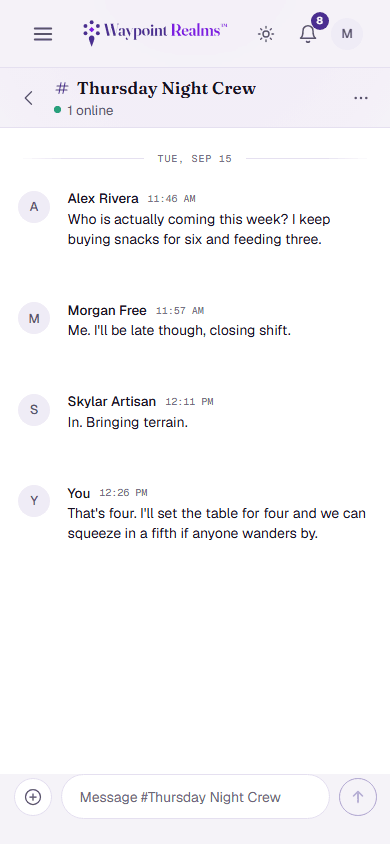
Messages opens on a strip of tabs — DMs (with your groups), Games for campaign and Session Chats, then your Circles — over that tab's folders of rooms, the same ones you see on a computer. Above them, Unread, Mentions, Threads and Requests work as they do there, and each room's ⋯ stars, mutes or files it. Tap a room to open it. To go back, tap the arrow at the top or swipe right. Threads and the other room controls are behind the ⋯ button in the room's header, and pinned messages show as a strip at the top of the conversation.
Sound and look
On a computer, open the gear at the bottom of the rooms column. These settings are saved on this device only, so your phone and your laptop can differ.
Messages has a set of five quiet tabletop sounds. Turn them all off with Play sounds in Messages, set how loud they are with Volume, or turn each one on or off. Preview plays a sound at the volume you've set.
- Felt tap — a message arrives in the room you're reading. Never for your own messages.
- Dice tick and bell — someone mentions you, or @everyone, wherever you are on Waypoint Realms.
- Wooden tick — someone reacts to your message.
- Chair pulled up — someone joins the room's voice.
- Clatter — a dice roll lands in a campaign room.
The same panel sets the text window background for rooms without a Realm's own look — Match app, the default, follows Waypoint's light or dark theme — message spacing, and whether sender avatars show. A Circle's rooms, campaigns and Session Chats wear their Realm's art behind the conversation; turn off Show Realm art in rooms to have your background everywhere. Reset to defaults puts everything back.
Message requests
Message requests are off unless you turn them on, under Message requests in your Security settings. With them on, someone you don't share a Circle with, and who isn't your friend, can send you one message — it arrives in Requests instead of your DMs, without a sound. Open it to see who it is and what they said, then:
- Accept — it becomes an ordinary conversation, and you can both write.
- Decline — it leaves your list. They aren't told, and can't write again.
- Block & report — their message goes to our moderators and they can't contact you.
Until you answer, they can't send anything more. Members under 18 never receive requests from outside their Circles.
Starting a conversation
Message a person
Open someone's profile from the player directory or a session and choose Message, or use New message under the caret at the top of the rooms column. This opens (or reuses) your direct conversation with them — or, if you're not in their Circles or friends and they allow message requests, sends them a request.Start a group
In Messages, use New group under the same caret to create a group chat and add the people you want.Send
Type in the message box and press Enter. New messages arrive live, with no need to refresh.
Staying on top of replies
Unread conversations show a count on their room and on their Circle's tile, and a count in a different colour when you were mentioned. How and when you're notified is up to you: see notifications.
Was this helpful?