
Your feed & posts
Read your network and the Realms you care about, post with photos, polls and embeds, and follow topics — all from the Feed page.
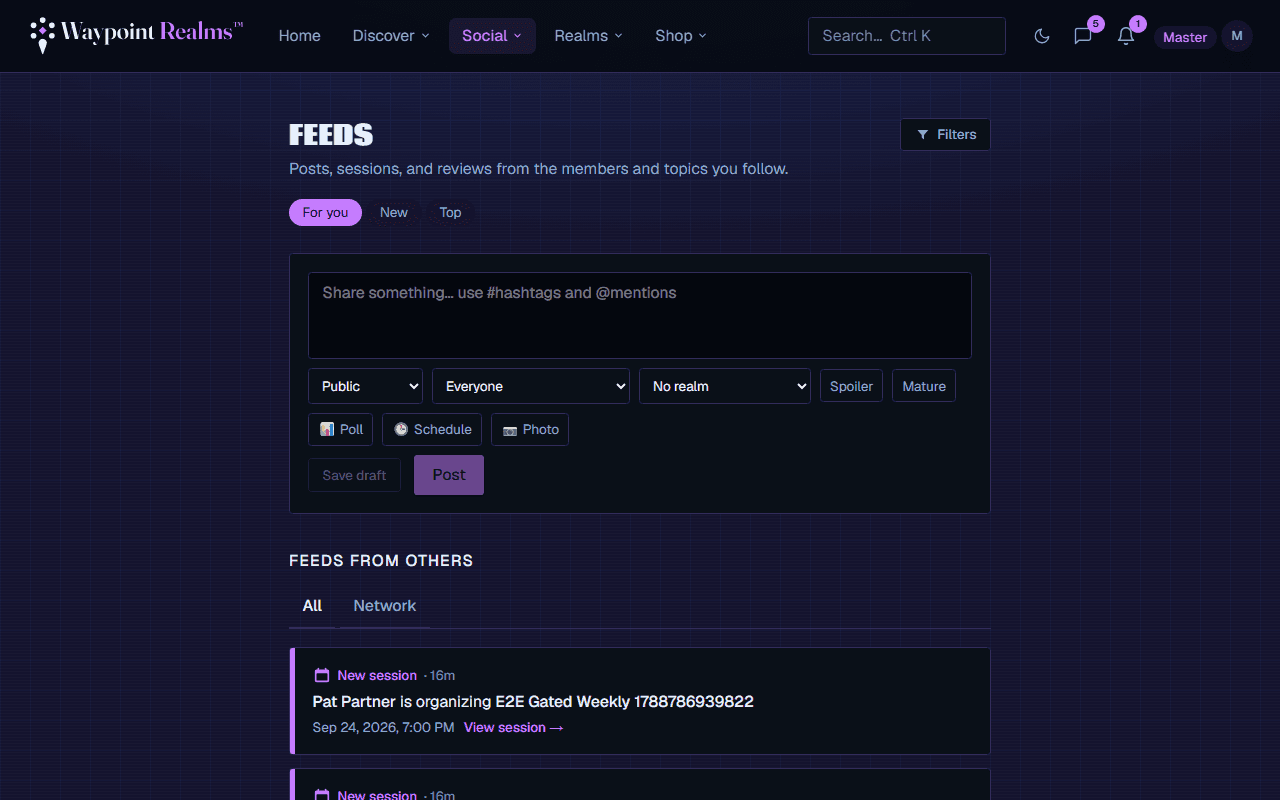
Your Feed (under Social ▾ → Feed) is where you keep up with your network and share what you're working on. Along the top: the Realm tabs, your Circles, and the sort and layout controls. Below them, the stream itself.
Narrowing the feed
- Realm tabs — All, or one Realm (TTRPG, Board Games, LARP, Cosplay, Comics, Anime). A Realm tab shows posts filed under that Realm and sessions of its kind. Posts filed under no Realm stay on All.
- Your Circles — a ring around a Circle means there are new posts there since you last caught up. Tap it to open the Circle. The first slot, Post, opens the composer.
- For you · New · Top — For you puts friends first, then people you follow, weighted by how recent things are. New is strictly newest first. Top is what people reacted to and replied to most, of what's recent.
- Nearby — posts tagged at a venue within 25 miles of you, newest first. Your browser asks for your location; the feed is only sent it rounded to about a mile, and it isn't saved to your account. Posts without a venue tag never appear here.
- Stream or grid — the two buttons beside the sort switch between full cards and a three-across grid of tiles. Your choice is remembered on this device.
What's new from your network in the past three days comes first. When you're caught up you'll see a You're all caught up line, and public posts from across Waypoint follow. See older activity on that line goes further back in your network.
Writing a post
Start a post
Click the Share something… field at the top of the feed (on a phone, tap the + button). Posts can be up to 2,000 characters; turn on Long post for more.Add to it
Attach up to four photos or one short clip (up to 60 seconds; it's checked when you post and plays muted until someone turns the sound on), start a poll, or attach one of your characters, cosplay builds or decks — it shows inside the post as a sheet, a progress bar or a decklist. Tag a Venue so people nearby can find it, file it under a Realm, add flair, or mark it a spoiler or mature.Choose who sees it
Pick Public (anyone), Friends only, or one of your Circles.Post, schedule or save
Post now, Schedule it for later, or Save draft. A post with an attachment, a venue or a clip goes out straight away.
Votes, comments & sharing
Under every post: vote it up or down (tap again to take your vote back), open the comments, reshare it, share a link to it, report it, or save it for later. The best comment shows under the post; tap it to read the thread. Emoji reactions are on the post's own page.
Managing your posts
Your own posts are on your profile rather than in your feed. Use Edit to fix a post (it's marked as edited) or Delete to remove it — deleting also removes its comments and reactions.
Was this helpful?